
WordPress robots.txt for AI Crawlers: Safe Template
WordPress can generate robots.txt dynamically, and plugins or server files can also control the response. Add AI crawler groups to the active robots.txt output rather than blindly replacing the whole file.
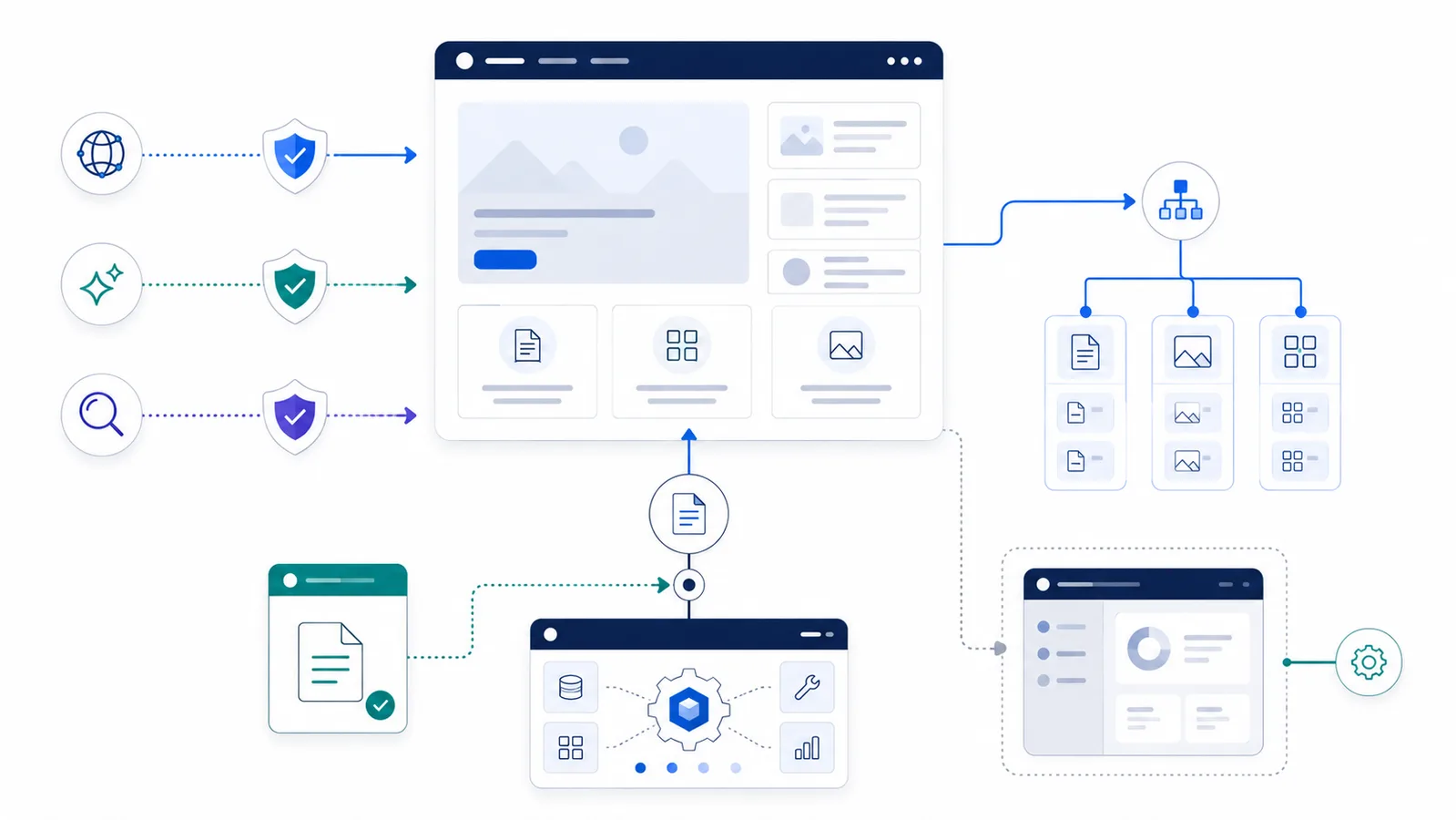
Copy-paste robots.txt example
User-agent: GPTBot
Disallow: /

User-agent: OAI-SearchBot
Allow: /

User-agent: Googlebot
Allow: /

Sitemap: https://your-domain.example/wp-sitemap.xml
On WordPress, the important question is not just what rules should I add? It is also which system currently owns /robots.txt? WordPress core can generate a virtual robots.txt response, while a physical file, SEO plugin, hosting layer, or custom code may override it.
Start with the live file
- Open
https://your-domain.example/robots.txt. - Identify the existing WordPress/search rules and any
Sitemap:line. - Add only the AI-specific groups you need.
- Recheck the live response after publishing.
WordPress core’s default robots output includes a group for all agents that disallows the admin area while allowing /wp-admin/admin-ajax.php. WordPress also exposes the robots_txt filter for modifying generated output. Your site may differ because plugins and hosting can change it.
WordPress virtual-file method: append rules without replacing core output
If your site is using WordPress’s virtual robots.txt response (and no physical file or plugin overrides it), WordPress exposes the robots_txt filter. The following PHP example appends one optional GPTBot restriction while preserving the content produced by WordPress:
add_filter('robots_txt', function ($output, $public) {
    if (!$public) {
        return $output;
    }
    return rtrim($output) . "\n\nUser-agent: GPTBot\nDisallow: /\n";
}, 10, 2);
Use this only in an appropriate site-specific plugin or child-theme code where you can safely manage PHP changes. Do not paste PHP into the robots.txt text file. The filter will not control a physical file served directly by the web server. Check /robots.txt after deployment to confirm what visitors and crawlers actually receive.
Before enabling the example, decide whether you want to opt out of GPTBot training crawling. It does not intentionally block Googlebot or OAI-SearchBot. If another plugin already emits a GPTBot group, avoid adding a conflicting duplicate.
Balanced AI add-on
User-agent: GPTBot
Disallow: /

User-agent: OAI-SearchBot
Allow: /

User-agent: Googlebot
Allow: /

Sitemap: https://your-domain.example/wp-sitemap.xml
Treat this as an add-on pattern, not a complete replacement file. Keep any existing rules your site needs, and verify the actual sitemap URL because WordPress plugins can use a different sitemap path.
Why this template separates GPTBot and OAI-SearchBot
GPTBot and OAI-SearchBot serve different purposes. A small business or publisher can block training-related GPTBot crawling while keeping ChatGPT Search discovery open.
Do not accidentally deindex the site
A robots.txt mistake can remove crawl access from important pages. Avoid replacing a working WordPress file with a generic snippet unless you have reviewed every existing directive. Validate representative URLs with the robots.txt Checker before and after the change.
Physical file vs virtual response
If a physical robots.txt exists at the web root, your server may serve that file instead of WordPress’s generated response. The only reliable check is the public URL itself. Make one change at a time, clear any relevant cache, and confirm the response that crawlers actually receive.
FAQ
Why is there no robots.txt file in my WordPress folders?
WordPress can generate a virtual robots.txt response dynamically. Open /robots.txt on the live domain to see what crawlers actually receive.
Should I block wp-admin in robots.txt?
WordPress’s default public output blocks /wp-admin/ and allows /wp-admin/admin-ajax.php. This is a crawling preference, not security for the administration area.
Which WordPress sitemap URL should I use?
Use the URL that returns the live sitemap on your site. Common possibilities include /wp-sitemap.xml, /sitemap_index.xml, or /sitemap.xml, depending on the active setup.
Should I block wp-content or JavaScript files?
Usually not. Search engines may need public CSS, JavaScript, images, and other assets to render pages correctly. Block only paths with a clear crawler-related reason.
Why does my robots.txt change not appear immediately?
A plugin, server cache, CDN cache, physical root file, or virtual WordPress output may still be serving another version. Inspect the live response and clear the relevant cache layer.
 AI robots.txt Generator
 robots.txt Checker
 Allow Search, Block AI Training robots.txt Template
 How to Block AI Crawlers with robots.txt
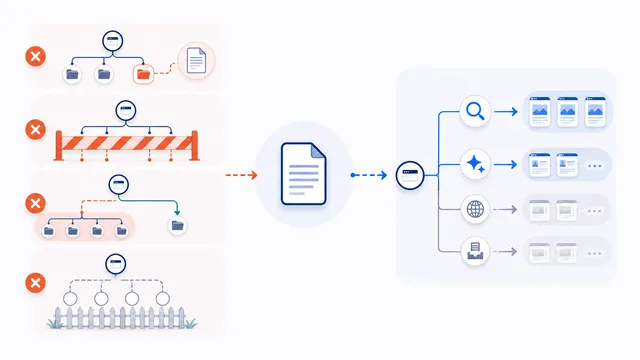 Common robots.txt Mistakes and How to Fix Them