
Shopify robots.txt.liquid for AI Crawlers: Safe Pattern
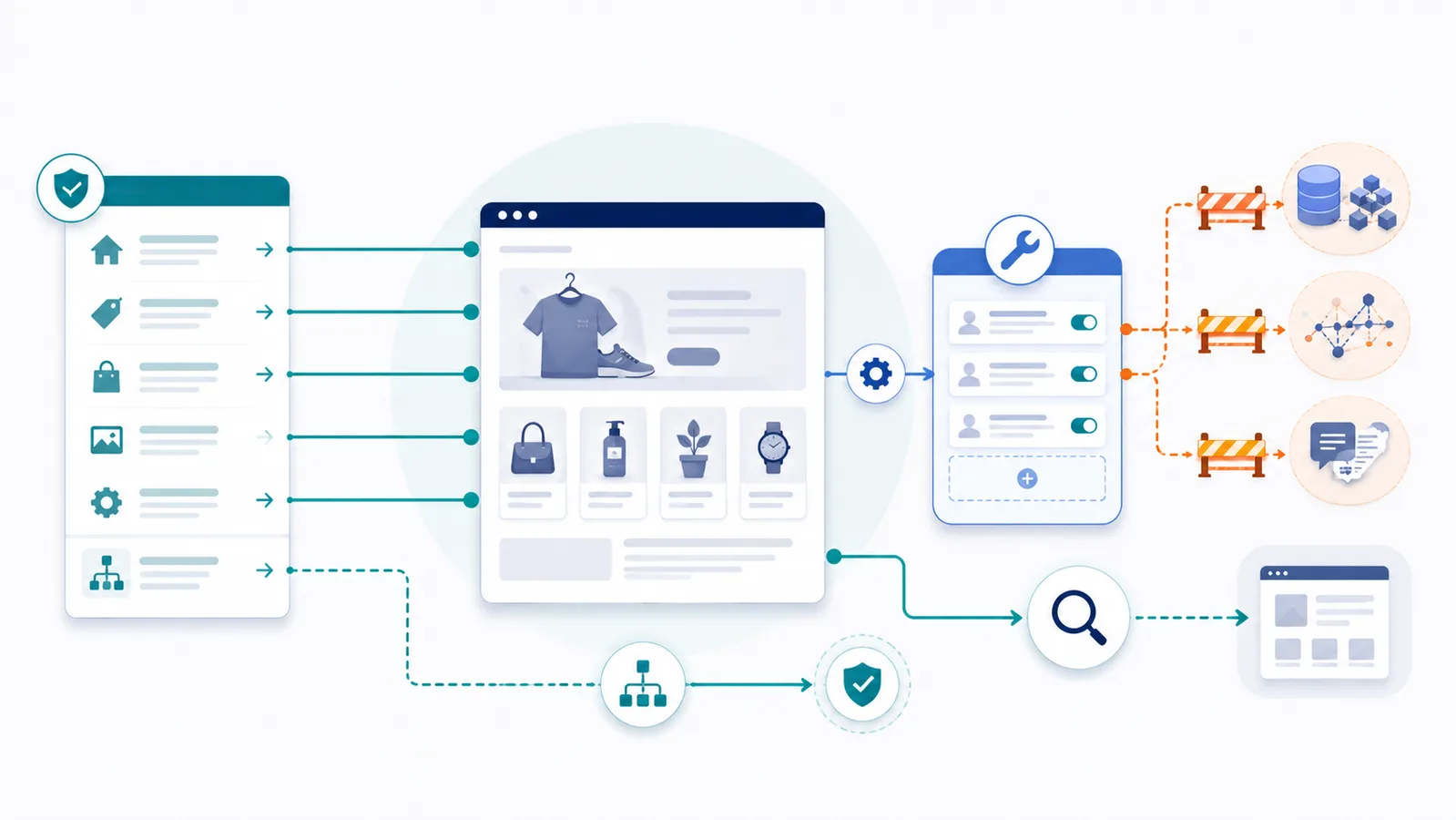
Shopify recommends preserving its default robots behavior and customizing through robots.txt.liquid. Add AI crawler rules to the generated file instead of replacing the entire Shopify robots.txt with a generic plain-text template.
Copy-paste robots.txt example
# Add these agent groups through Shopify robots.txt.liquid.
# Do not use this snippet as a full replacement for Shopify's generated file.
User-agent: GPTBot
Disallow: /

User-agent: OAI-SearchBot
Allow: /
Shopify already generates a robots.txt file designed for the platform. The safe goal is usually to extend that output, not replace it with a generic file that can become stale.
Use robots.txt.liquid as a customization layer
Shopify documents robots.txt.liquid as the customization mechanism for crawler rules. Its help documentation recommends using Liquid so Shopify can continue updating the default file over time, and strongly warns against replacing the entire output with static plain-text rules.
AI crawler policy to add
If your policy is “block GPTBot training crawling but keep ChatGPT Search crawling,” the AI-specific groups are:
User-agent: GPTBot
Disallow: /

User-agent: OAI-SearchBot
Allow: /
These lines are the policy you want to add to Shopify’s generated robots output. They are not a complete Shopify robots.txt replacement.
Why a complete replacement is risky
Shopify’s default rules can change as the platform evolves and include crawl decisions specific to storefront URLs. A static replacement can discard those platform-managed rules and create SEO problems that have nothing to do with AI crawlers.
Shopify implementation checklist: retain its managed rules
- Save a copy of the current
https://your-store.example/robots.txtresponse. - In the active theme’s code editor, create or edit the
robots.txt.liquidtemplate. Shopify documents this as an advanced customization; changes to the published theme can take effect immediately. - Follow Shopify’s official Liquid customization guidance so the existing dynamically generated rule groups are retained. Do not discard the complete default output in favor of the short example above.
- Add the desired AI-crawler policy to the generated output and publish the theme change.
- Reopen the live
/robots.txt. Confirm that existing store restrictions (cart, checkout, accounts, filtered collection URLs as applicable) remain present and the added crawler group is visible.
Then simulate one public product path and one restricted account/cart path in the draft Checker, and recheck the same exact store host in the live Checker. The presence of a robots.txt Allow rule does not override Shopify authentication or guarantee search placement.
Verification checklist
- Review the current live
/robots.txtbefore editing. - Use Shopify’s
robots.txt.liquidmechanism to add only the directives you need. - Keep Shopify’s existing search-engine rules and sitemap behavior unless you have a documented reason to change them.
- Open the live file after publishing and test URLs with the robots.txt Checker.
For the crawler semantics behind the example, see GPTBot and OAI-SearchBot. For a provider-level policy example, use OpenAI robots.txt controls.
Do not copy platform rules from another store
Use your own store’s generated output as the baseline. A rule copied from another Shopify store can reflect different apps, storefront behavior or older platform defaults. The AI-specific group should be a deliberate addition to the current store configuration, not a reason to freeze the whole robots.txt file in copied text.
FAQ
Does Shopify already have a robots.txt file?
Yes. Shopify generates a default robots.txt file for stores. Create robots.txt.liquid only when you need a reviewed customization.
Should I replace Shopify’s default robots.txt with plain text?
Usually not. Shopify recommends using the provided Liquid objects so default rules can continue to reflect platform SEO practices while you add targeted custom rules.
Where do I edit robots.txt on Shopify?
In the active theme’s code editor, create or edit the Templates/robots.txt.liquid file, preferably after testing the change in a duplicate theme.
Can I block AI crawlers without blocking Google Search?
Yes. Add crawler-specific groups such as GPTBot or ClaudeBot and avoid a broad wildcard block that would also apply to Googlebot.
Will robots.txt secure customer or order data?
No. Robots.txt is a public crawler instruction. Customer, order, account, wholesale, and private resources require Shopify’s real authentication and authorization controls.
 AI robots.txt Generator
 robots.txt Checker
 Allow Search, Block AI Training robots.txt Template
 How to Block AI Crawlers with robots.txt
 Common robots.txt Mistakes and How to Fix Them